
Configuring Gmail
In our examples we consider the following information:
- Account name:
test - Mailbox:
test@alwaysdata.net
They must be replaced by your personal login information:
| Server | Service | Information | |
|---|---|---|---|
| Incoming | POP3 | POP Server | pop-[account].alwaysdata.net |
| Username | Your email address - for example contact@example.org | ||
| Password | The password of your email address | ||
| Port | 995 | ||
| Outgoing | SMTP | SMTP Server | smtp-[account].alwaysdata.net |
| Username | Your email address - for example contact@example.org | ||
| Password | The password of your email address | ||
| Do not treat as an alias | |||
| Port | 465 | ||
| Secured connection |
Tip
Replace contact@example.org by your email address. It is defined in the Emails > Addresses menu of our administration interface.
Web browser
Go to See all settings > Accounts and Import.
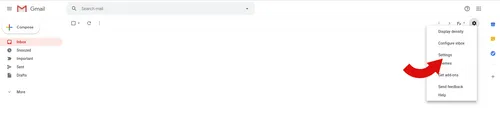
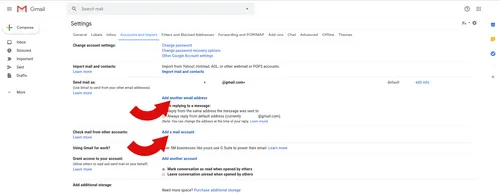
Incoming mails (IMAP/POP)
Go to Add a mail account > Import emails from my other account (POP3).
Check "Always use a secure connectiion (SSL) when retrieving mail.".
Caution
This is a POP3 connection that will get email from the email servers.
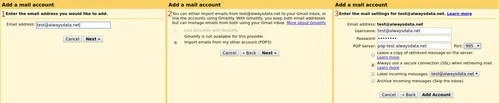

Outgoing mails (SMTP)
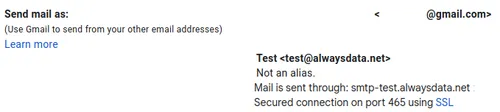
Go to Add another email address.
- Uncheck the Treat as an alias box.
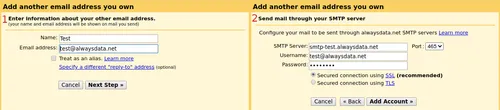
Mobile
Go to Settings > Add an account > Other.
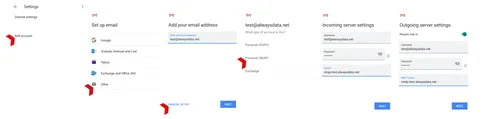
- For outgoing mail, check the Demand a connection box.