
Using SSH Keys
Connecting in SSH mode with its public key (with or rather than use the connection via password) offers some advantages: enhanced security, the ability to define a "blank" password, etc. Here are the steps to follow to configure your SSH account with a public key.
Note
DSA keys are not accepted.
Generate the private key
In Windows
The actions are performed using PuTTY, an SSH client available free of charge.
- Start PuTTYGen (supplied by PuTTy),
- Generate a pair of SSH-2 ED25519 keys,
- Save the private key on your station.
In Unix / OS X
$ mkdir -p $HOME/.ssh
$ chmod 0700 $HOME/.ssh
$ ssh-keygen -t ed25519 -f $HOME/.ssh/id_ed25519
Tip
To never have to enter your password when connecting in SSH mode, specify a blank "passphrase".
Declare the SSH key on the server
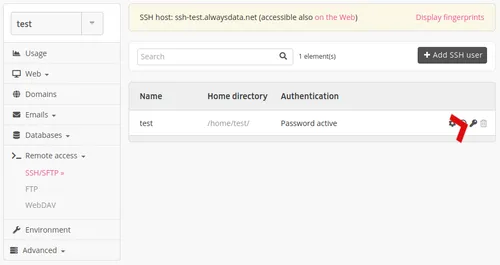
Navigate to the Remote Access > SSH/SFTP > SSH Keys - 🔑 menu of the desired SSH user.
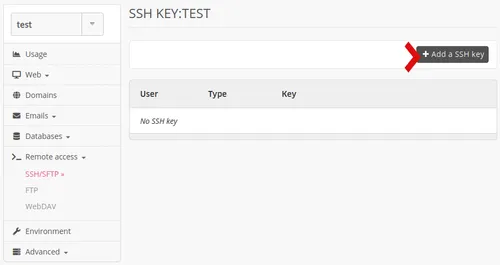
Then click on Add a SSH Key.
Tip
Users of the Private Cloud can declare global keys to the server, which can be used by all accounts.