
Restore a Website
Backups of your files and databases are located in the /home/[account]/admin/backup directory for your account. You can restore them using the Advanced > Restore backups menu.
-
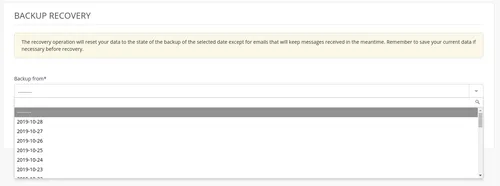
Choose the required date,
-
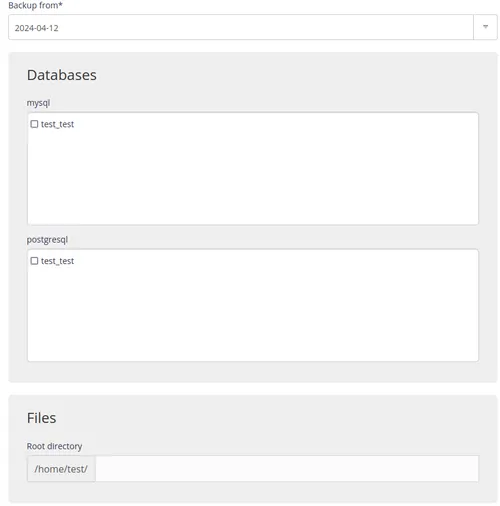
Then check the one or more databases and/or directories required 1.
Caution
Restore will overwrite the current configuration, so make a backup first.
Note
The restore time depends on the size of the files to restore.
SSH mode
To restore a backup manually.
-
Connect to your account in SSH ;
-
Restore files:
$ rsync -av --delete /home/[account]/admin/backup/[date]/files/[directory]/ /home/[account]/[directory]/
Caution
--delete will delete all of the files from this directory that have been created since the backup date. To run a test add -n.
-
Restore a MySQL database:
$ zstdcat /home/[account]/admin/backup/[date]/mysql/[base].sql.zst | mysql -h mysql-[account].alwaysdata.net -u [user] -p [base] -
Restore a PostgreSQL database:
$ zstdcat /home/[account]/admin/backup/[date]/postgresql/[base].sql.zst | psql -h postgresql-[account].alwaysdata.net -U [user] -W -d [base]
Tip
The archived contents (e.g. BDD dumps) in your backup space are in Zstandard format, you can use the official zstd* tools or the adapted plugin for 7zip to manipulate them.