Configuring Mail.app (Apple/iOS)
In our examples we consider the following information:
- Account name:
test - Mailbox:
test@alwaysdata.net
They must be replaced by your personal login information:
| Server | Service | Information | |
|---|---|---|---|
| Incoming | IMAP | Hostname | imap-[account].alwaysdata.net |
| Port | 993 | ||
| Username | Your email address - for example contact@example.org | ||
| Password | The password of your email address | ||
| Authentication method | Normal password | ||
| POP3 | Host | pop-[account].alwaysdata.net | |
| Port | 995 | ||
| Username | Your email address - for example contact@example.org | ||
| Password | The password of your email address | ||
| Authentication method | Normal password | ||
| Outgoing | SMTP | Host | smtp-[account].alwaysdata.net |
| Port | 465 | ||
| Username | Your email address - for example contact@example.org | ||
| Password | The password of your email address | ||
| Authentication method | Normal password |
Tip
[account] must be replaced by the name of your account and contact@example.org by your email address. They are defined in the Emails > Addresses menu of our administration interface.
MacOS: Mail.app application
Go to File > Add an account > Another Mail account...
- Specify the connection information and choose IMAP or POP for incoming mail.
- If you get an SSL error message, go ahead and click on Connect, you can still fill-in the new connection information later on.
Leave password authentication in place.
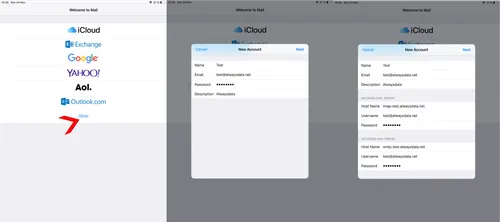
iOS (iPhone, iPad): Mail
GoMail on mobile to Settings > Passwords and accounts > Add an account > Other > Add a mail account.