Configuring Thunderbird
General
Tip
For domains using our DNS servers, Thunderbird autoconfiguration is usable. You just need to provide your username (email address) and password. The other settings are automatically generated.
| Server | Service | Information | |
|---|---|---|---|
| Incoming | IMAP | Hostname | imap-[account].alwaysdata.net |
| Port | 993 | ||
| Connection security | Will be automatically set up | ||
| Authentication method | Normal password | ||
| Username | Your email address - for example contact@example.org | ||
| Password | The password of your email address | ||
| POP3 | Host | pop-[account].alwaysdata.net | |
| Port | 995 | ||
| Connection security | Will be automatically set up | ||
| Authentication method | Normal password | ||
| Username | Your email address - for example contact@example.org | ||
| Password | The password of your email address | ||
| Outgoing | SMTP | Host | smtp-[account].alwaysdata.net |
| Port | 465 | ||
| Connection security | Will be automatically set up | ||
| Authentication method | Normal password | ||
| Username | Your email address - for example contact@example.org | ||
| Password | The password of your email address |
Tip
Replace contact@example.org by your email address. It is defined in the Emails > Addresses menu of our administration interface.
Screenshots
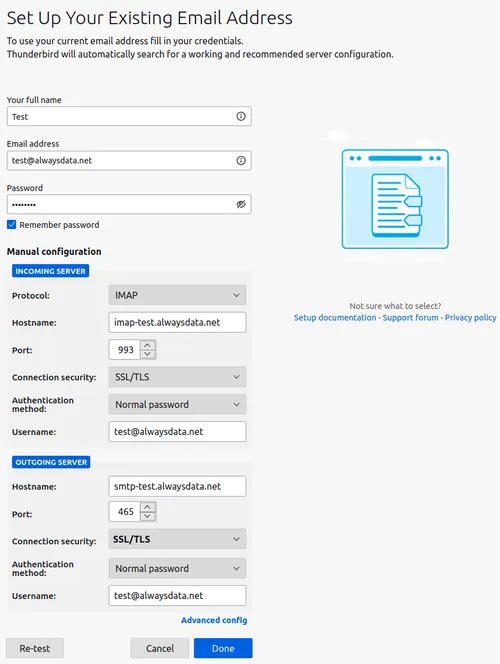
In our example we consider the following information (to be replaced by your personal login information):
- Account name:
test - Mailbox:
test@alwaysdata.net
Go to Settings > Configure an account: E-mail.
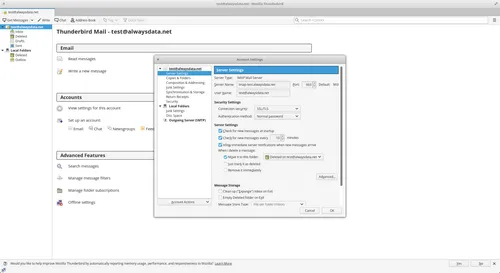
To change it once created, go to Accounts > See settings for this account or go to the Edit > Account settings menu bar:
-
For incoming mail, go to Server settings.
-
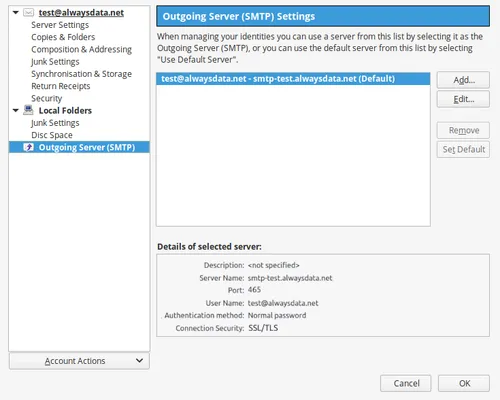
For outgoing mail, go to outgoing SMTP server.