
Configuring Outlook
General
Tip
For domains using our DNS servers, Outlook autoconfiguration is usable. You just need to provide your username (email address) and password. The other settings are automatically generated.
| Server | Service | Information | |
|---|---|---|---|
| Incoming | IMAP | Server | imap-[account].alwaysdata.net |
| Port | 993 | ||
| Encryption method | Will be automatically set up | ||
| Authentication method | Require logon using Secure Password Authentication (SPA) | ||
| Email address | Your email address - for example contact@example.org | ||
| Password | The password of your email address | ||
| POP3 | Server | pop-[account].alwaysdata.net | |
| Port | 995 | ||
| Encryption method | Will be automatically set up | ||
| Authentication method | Require logon using Secure Password Authentication (SPA) | ||
| Email address | Your email address - for example contact@example.org | ||
| Password | The password of your email address | ||
| Outgoing | SMTP | Server | smtp-[account].alwaysdata.net |
| Port | 465 | ||
| Encryption method | Will be automatically set up | ||
| Authentication method | Require logon using Secure Password Authentication (SPA) | ||
| Email address | Your email address - for example contact@example.org | ||
| Password | The password of your email address |
[account] must be replaced by the name of your account and contact@example.org by your email address. They are defined in the Emails > Addresses menu of our administration interface.
Screenshots
In our example we consider the following information (to be replaced by your personal login information):
- Account name:
test - Mailbox:
test@alwaysdata.net
Computer
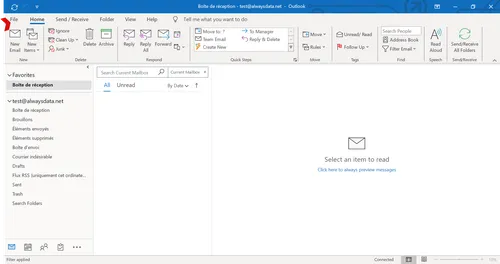
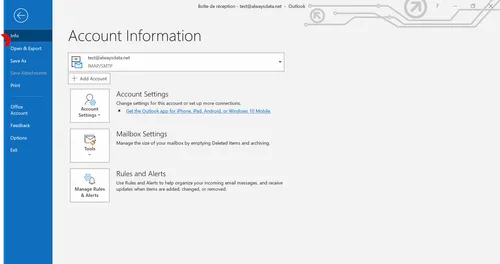
Go to Files > Information > Add an account.
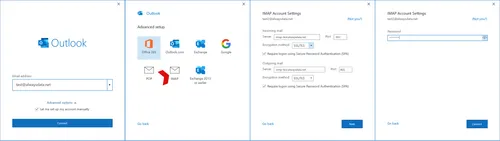
- Configure the account by hand.
- Choose POP or IMAP.
- Check the Demand Secure Password Authentication (SPA) on connection box.
Mobile
Go to Go ahead > Ignore if the > Advanced IMAP or POP3 account types are offered.
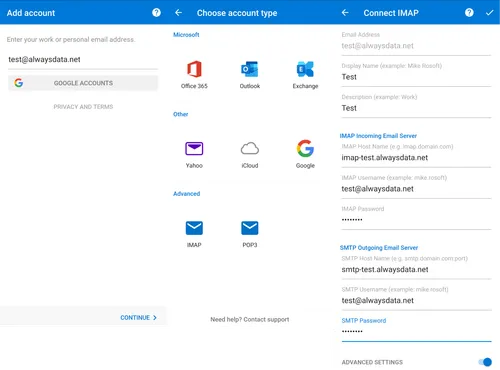
Click on Advanced settings to specify the host names.